Enable order alerts
Allow notifications when prompted. Check notification sound and volume, and make sure Do Not Disturb is not silencing your order alerts.
Bistreo for Android · Early access
Android 7.0+ · 48.7 MB · For restaurant staff
Accept orders, set ready times and manage stock with Bistreo Order Manager. Download the Android app directly here while it is not yet on Google Play.
For restaurant owners and staff—not customers placing an order. You’ll need a Bistreo staff account with access to your store.
How to install ↓Android phones & tablets
Open this page on your Android device to install. On a computer, save the APK and transfer it to your device’s Downloads folder.
This is a direct-download preview, not a Google Play listing. iPhone and iPad installation is not available.
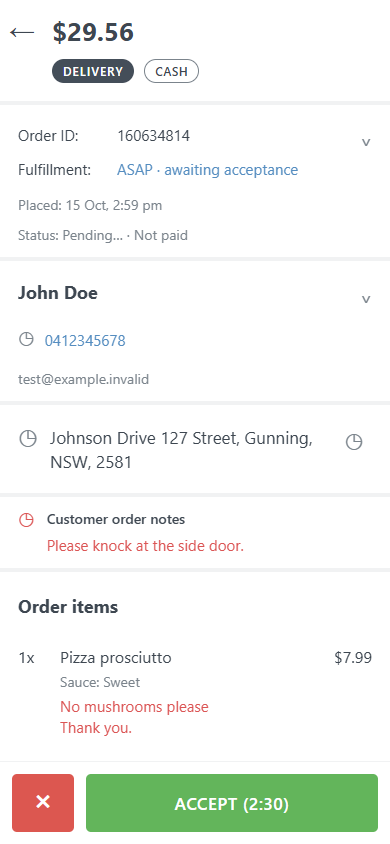
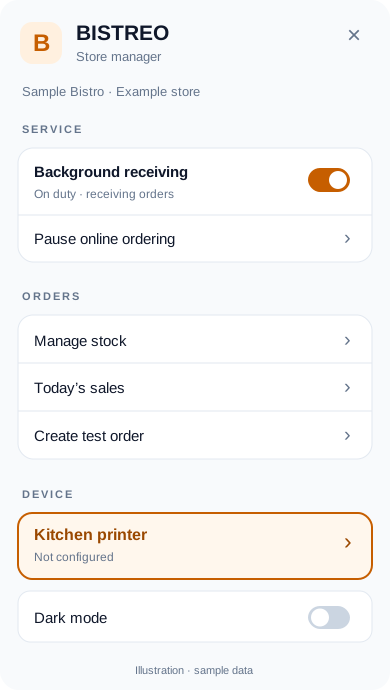
See order details, customer notes and the controls your team uses during service. These examples use sample data.
Getting started
Android’s wording varies by device. Only install the APK you downloaded from bistreo.com.
Tap Download for Android above. When the download finishes, open the file from your browser’s downloads or the Files app → Downloads.
If Android asks, open Settings from the prompt and enable Allow from this source for the browser or Files app you used. Return to the installer. You can turn this permission off again after installation.
Tap Install, then Open. Keep Google Play Protect enabled and allow its checks. If a security check blocks the app or reports it as harmful, stop and contact support—don’t disable protection.
Use your Bistreo owner or staff email and password, then select your assigned store if prompted. The app connects to https://bistreo.com; you don’t need a local IP address or a computer running beside it.
On Android 7, the setting may instead appear as Security → Unknown sources. Turn it off again after installing. Newer devices give this permission to an individual browser or file app.
More help: Google’s Android installation guide ↗
Allow notifications when prompted. Check notification sound and volume, and make sure Do Not Disturb is not silencing your order alerts.
For background order alerts, allow the app’s order-receiving service to run. If your device limits it, set Bistreo’s battery usage to Unrestricted or allow background activity. Keep a reliable internet connection.
Confirm the selected store, service status and stock. If you use kitchen printing, configure the printer in the app and run a test receipt before service.
Printer setup guide →Keep the device charged during service. Force-stopping the app, signing out, losing internet or device power-saving restrictions can stop order alerts. Reopen Bistreo after a restart and verify that order receiving is active.
Download the latest APK from this page and install it over your existing app. Android normally keeps your app data when the installation is compatible. If it says the package conflicts or the signatures differ, don’t uninstall during service—contact support first, as uninstalling removes local settings. Updates are manual until another distribution method is available.
Check that the download finished, your device has free storage and it runs Android 7.0 or newer. A managed work device may require your organisation’s approval. If a security policy or Play Protect blocks installation, contact your administrator or support rather than bypassing it.
Ask your restaurant owner or store manager to add you to the correct location. A customer account does not grant staff access. Restaurant owners can create a merchant account first.
For technical verification, compare the APK’s SHA-256 checksum with the value below. This identifies the file supplied on this page; it is not a Google Play security review.