
Facebook ordering
Turn your Facebook visitors into direct orders.
Give guests a direct route from your restaurant’s Facebook Page to your Bistreo ordering menu.
0% Bistreo order commission. Payment-provider fees are separate.
01 / Facebook ordering
Share the right ordering link
Open Store Management → Connections & feedback → Facebook ordering for the selected store. Use the store-specific ordering link so customers reach the correct menu.
02 / Facebook ordering
Add it to your Page
If Facebook offers a suitable action button for your Page, paste your ordering link there. You can also add the link to your Page information and pin a post. Button names and availability depend on Facebook.
03 / Facebook ordering
Receive orders in your existing queue
Customers browse and check out on Bistreo. Orders follow the selected store’s hours, stock and payment settings and still require kitchen acceptance.
Website ordering →Inside Bistreo
Set it up in your dashboard
Use Selected store in the dashboard header to switch locations, then follow the steps below. Tap a screenshot to view it at full size.
- 1
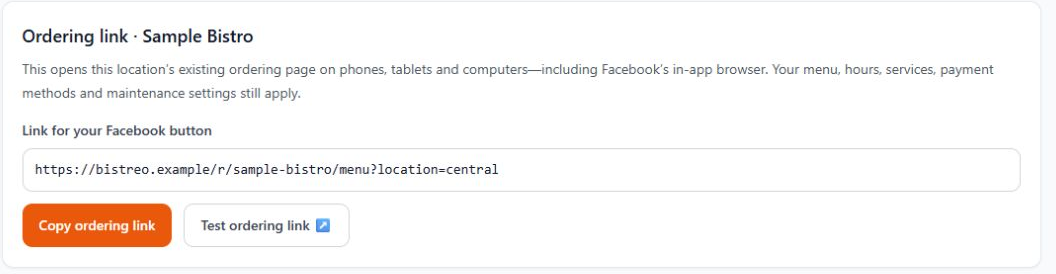
Copy and test the selected store’s link
Select the store in Store Management, then open Connections & feedback → Facebook ordering. Use Copy ordering link, then Test ordering link to check the selected location. Add the URL manually to an available Facebook Page action button, Website field or pinned post. Save and test the button on your Facebook Page.
Make it yours
Your next order can come directly to you.
Start with one Free store. Add your menu, verify your settings and test the complete flow before opening for orders.
Get started with Bistreo