
Takeaway ordering
From their phone to your pickup counter.
Let guests choose their meal, customize it and order for pickup. Your team confirms the request and keeps collection moving through one kitchen queue.
0% Bistreo order commission. Payment-provider fees are separate.
01 / Takeaway ordering
Your full menu, with the choices that matter
Publish items, categories and option groups for each store. Sold-out items stay visible but cannot be ordered; inactive items stay off the customer menu.
02 / Takeaway ordering
A ready time your team controls
For ASAP pickup, staff confirm a preparation time when accepting. For scheduled pickup, the customer’s requested time is retained while staff still confirm the order.
03 / Takeaway ordering
Bring it into the kitchen workflow
Receive pickup orders in the Android app, keep notes with the order and print accepted receipts on a supported kitchen printer. Update status as the meal moves through preparation.
Pickup setup guide →Inside Bistreo
Set it up in your dashboard
Use Selected store in the dashboard header to switch locations, then follow the steps below. Tap a screenshot to view it at full size.
- 1
Enable services for this location
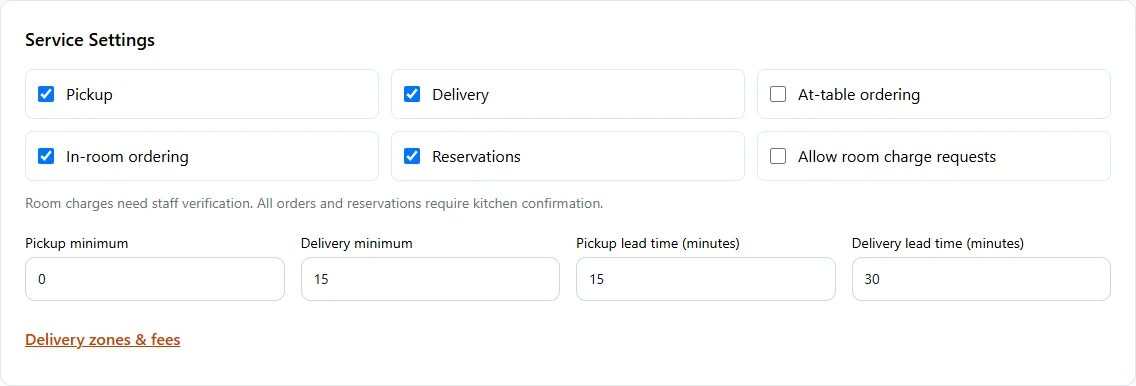
In Store Management, open Store & team → Services & opening hours. In Service Settings, enable Pickup, Delivery, At-table ordering, In-room ordering or Reservations. Set lead times and minimums, then Save services & opening hours.
- 2
Configure orders and scheduled times
In Store Management, select your store, then open Ordering & reports → Order rules. Enable Online ordering and choose minimums and lead times. Enable future ordering (scheduled orders) allows customers to choose Later at checkout. Press Save Changes. Website & display → Ordering page controls appearance; future ordering is configured in Order rules.

Make it yours
Your next order can come directly to you.
Start with one Free store. Add your menu, verify your settings and test the complete flow before opening for orders.
Get started with Bistreo