
At-table dining
Place a QR code on each table. Guests choose dishes, customize their options and send the order with the table number attached.
Table & room ordering · Setup guide
Let guests browse your menu and order from their table or room, without installing an app. Each QR code carries the table or room number with the order.
Set up your QR codes ↓Place a QR code on each table. Guests choose dishes, customize their options and send the order with the table number attached.
Place a QR code in each room. Guests order from your room-service menu, with the room number carried through to the kitchen.
Inside Bistreo
Use Selected store in the dashboard header to switch locations, then follow the steps below. Tap a screenshot to view it at full size.
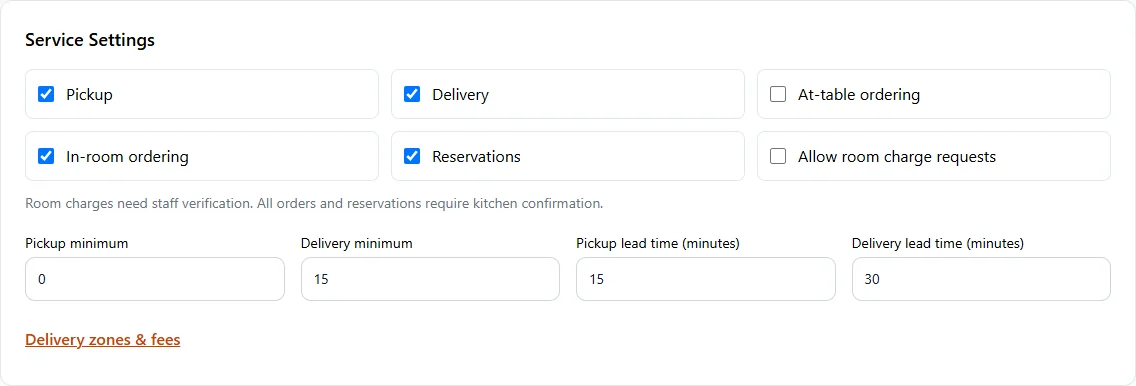
In Store Management, select your store, then open Store & team → Services & opening hours. Turn on At-table ordering. Press Save services & opening hours. Then open Table & room ordering to add rooms or tables and download QR codes. Cash and online payment availability still follows the store’s payment settings.
Under Add rooms or tables, set Type to Tables. Enter numbers or names separated by commas, then press Add tables. Add up to 100 entries at a time. Each entry receives its own ordering code; staff still accept incoming orders. For in-room service, choose Rooms in Type and add room numbers separately.

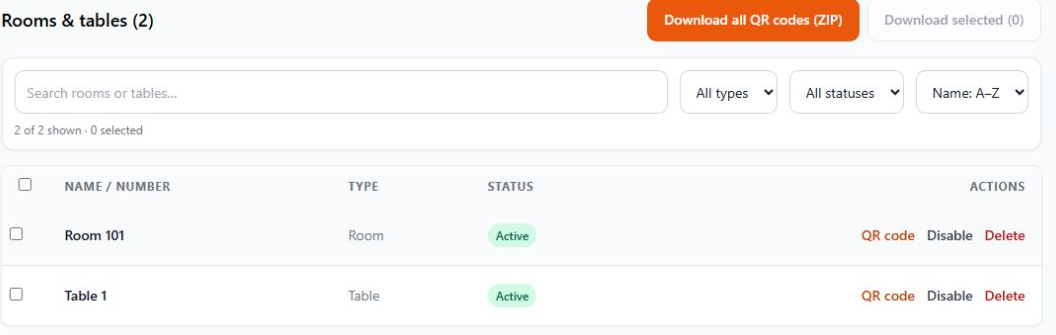
Use Download all QR codes (ZIP), or tick specific rows and choose Download selected. The QR code action on a row opens its individual code. Keep the printed white border, print at least 35 mm wide and scan-test the code before placing it.
Cash and online payment follow that location’s payment settings. Stripe and PayPal are offered only when configured and enabled for the store and allowed by the platform.
For rooms, you can also allow room charge requests. This does not automatically charge a hotel account: staff must verify the guest and manually post the charge. Bistreo does not connect this request to a property-management system.
Table and room orders still need staff acceptance. They arrive alongside food orders in the app, labelled with the table or room. Guests see the confirmation after acceptance.
Normal stock, opening hours and service-pause controls apply. QR ordering is for service here, as soon as possible—not scheduled pickup or delivery. Disable an entry if its QR code should no longer accept orders.
Start with one table or room, test the full flow, then download the rest of your codes.