
QR code ordering
A menu at every table. An order straight to the kitchen.
Guests scan, customize and order from their own phone. Table-specific QR codes carry the right table number into your Bistreo kitchen queue.
0% Bistreo order commission. Payment-provider fees are separate.
01 / QR code ordering
A code for every table
Create named tables in Store Management → Ordering & reports → Table & room ordering. Download codes individually or select several for a ZIP download, then print and test them where guests will scan.
02 / QR code ordering
Guests order in their browser
The code opens the selected store’s menu with the table attached. Guests choose dishes and options, add notes and use the payment methods enabled for that location.
03 / QR code ordering
The kitchen still says yes
A table order joins the staff queue with a table icon and number. Staff must accept it before it is confirmed; normal stock and availability controls still apply.
QR setup guide →Inside Bistreo
Set it up in your dashboard
Use Selected store in the dashboard header to switch locations, then follow the steps below. Tap a screenshot to view it at full size.
- 1
Enable at-table ordering
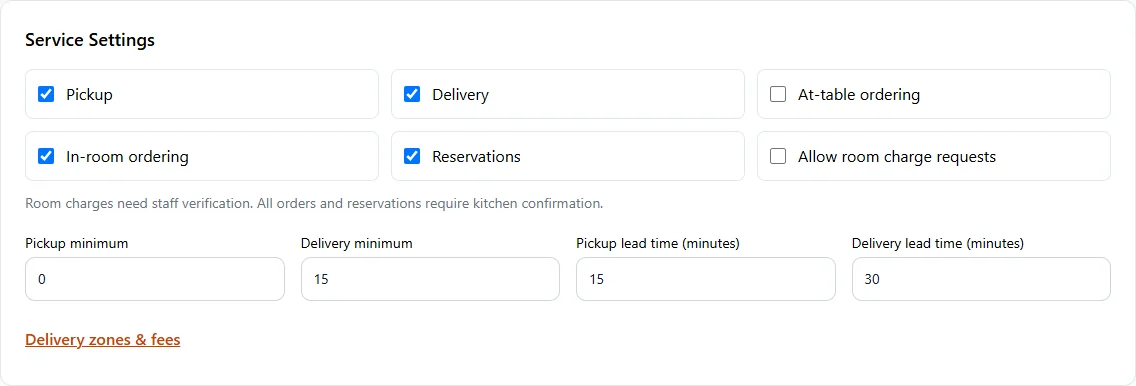
In Store Management, select your store, then open Store & team → Services & opening hours. Turn on At-table ordering. Press Save services & opening hours. Then open Table & room ordering to add rooms or tables and download QR codes. Cash and online payment availability still follows the store’s payment settings.
- 2
Add your tables
Under Add rooms or tables, set Type to Tables. Enter numbers or names separated by commas, then press Add tables. Add up to 100 entries at a time. Each entry receives its own ordering code; staff still accept incoming orders.

- 3
Download the QR codes
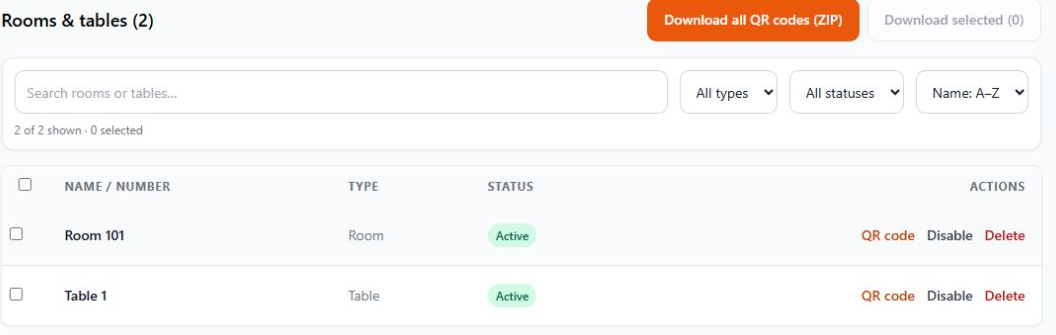
Use Download all QR codes (ZIP), or tick specific rows and choose Download selected. The QR code action on a row opens its individual code. Keep the printed white border, print at least 35 mm wide and scan-test the code before placing it.
Make it yours
Your next order can come directly to you.
Start with one Free store. Add your menu, verify your settings and test the complete flow before opening for orders.
Get started with Bistreo