
How Bistreo works
From your menu to the kitchen, in a few steps.
Set up your restaurant, receive direct orders and keep customers informed from checkout to collection or delivery.
0% Bistreo order commission. Payment-provider fees are separate.
Try the kitchen side
See an order arrive.
Make it happen.
Choose a sample order, accept it and follow it through preparation. This interactive preview uses sample data and does not charge, print or send real orders.
Try the order-taking app
Interactive demoOrders
Service active · Sample BistroTap a pending order to try accepting it.
Sample data only · no real orders or emails
01 / How Bistreo works
Set up your restaurant
Verify your email to activate your account. Add your menu manually or import it through Integrations → GloriaFood using your vendor email and Fetch Menu Restaurant Key. Review imported items before activating them, then configure hours, services and payment methods for each store.
02 / How Bistreo works
Customers place an order
Guests choose a location, select available items and options, add checkout comments and pay using the enabled methods. They can order without creating an account.
03 / How Bistreo works
Your team confirms it
Orders arrive in the kitchen queue. Staff accept or decline them, confirm an ASAP ready time when needed and update the order status. Scheduled orders keep the requested time.
Get the Android app →Inside Bistreo
Set it up in your dashboard
Use Selected store in the dashboard header to switch locations, then follow the steps below. Tap a screenshot to view it at full size.
- 1
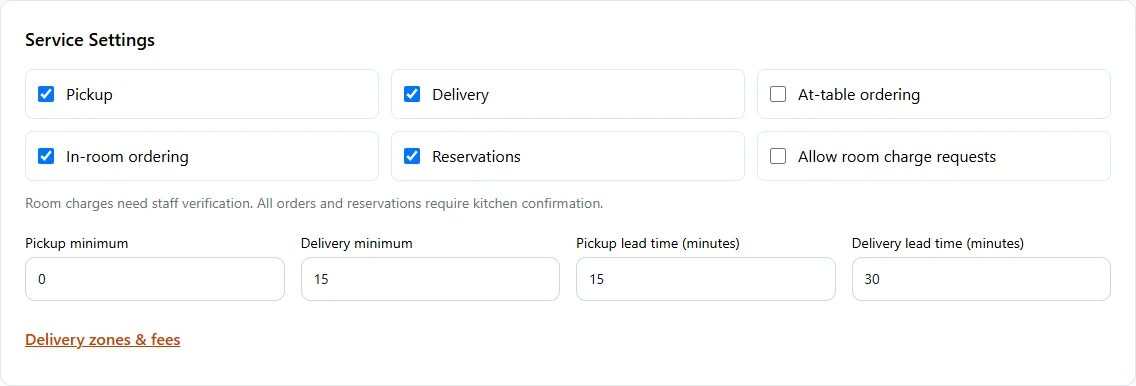
Enable services for this location
In Store Management, open Store & team → Services & opening hours. In Service Settings, enable Pickup, Delivery, At-table ordering, In-room ordering or Reservations. Set lead times and minimums, then Save services & opening hours.
- 2
Configure orders and scheduled times
In Store Management, select your store, then open Ordering & reports → Order rules. Enable Online ordering and choose minimums and lead times. Enable future ordering (scheduled orders) allows customers to choose Later at checkout. Press Save Changes. Website & display → Ordering page controls appearance; future ordering is configured in Order rules.

Make it yours
Your next order can come directly to you.
Start with one Free store. Add your menu, verify your settings and test the complete flow before opening for orders.
Get started with Bistreo