
Restaurant marketing
Give regulars a direct route back to you.
Connect your restaurant website, social links and in-store QR codes, with offers your own team controls.
0% Bistreo order commission. Payment-provider fees are separate.
01 / Restaurant marketing
Make your ordering link easy to find
Add your website to your social profiles, business listings and printed materials. Check each link on a phone and send customers to the correct location.
02 / Restaurant marketing
Use your built-in tools
Configure coupons and loyalty settings in the dashboard where enabled. Review the store, offer conditions and checkout behaviour before promoting an offer.
03 / Restaurant marketing
Learn from your own orders
Track store sales and orders in the dashboard. Pro adds advanced sales/customer insights to help you understand your business across locations.
Facebook ordering →Inside Bistreo
Set it up in your dashboard
Use Selected store in the dashboard header to switch locations, then follow the steps below. Tap a screenshot to view it at full size.
- 1
See how your store is performing
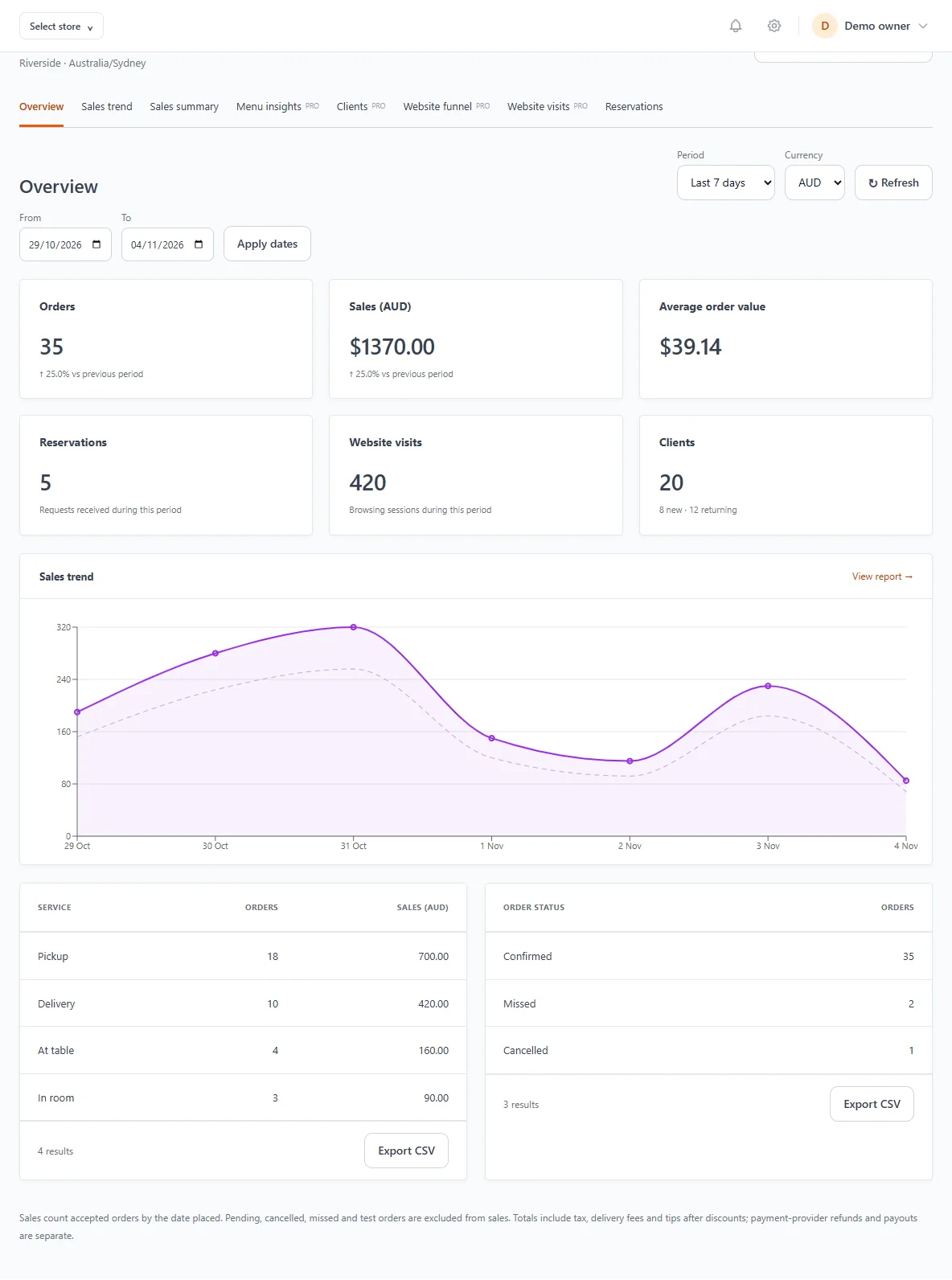
Open Reports for the selected store. Overview shows accepted orders, sales and reservations. Use Sales trend for period comparisons or Sales summary to break sales down by payment method or service. Set the date range and currency, then use Export CSV for a spreadsheet.
- 2
Follow the website ordering journey
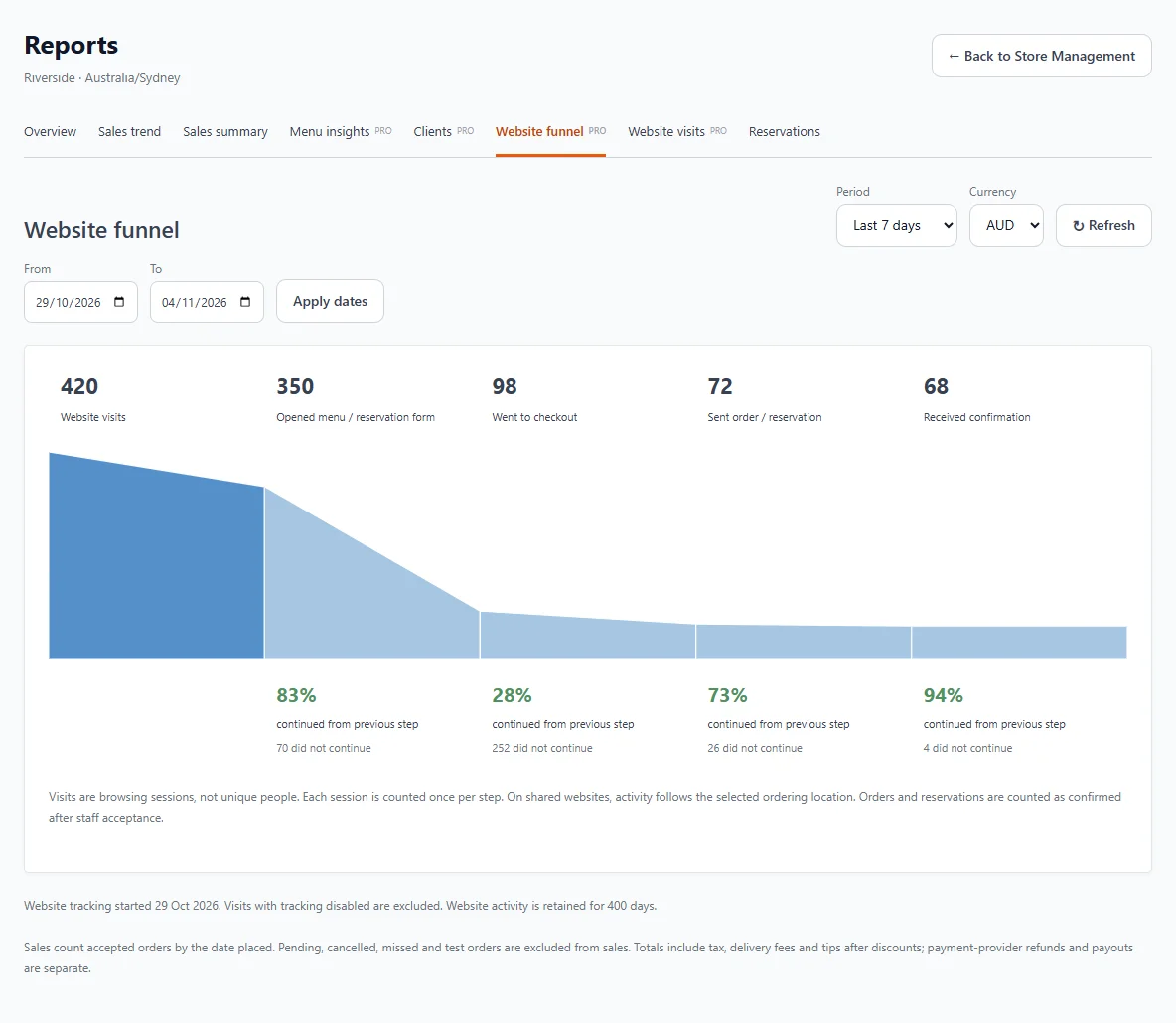
On Bistreo Pro, open Reports → Website funnel to see visits, menu or reservation views, checkout, submissions and staff confirmations. Website visits shows traffic sources. Menu insights and Clients help you understand popular dishes and returning customers. Website tracking begins when customers visit after setup; earlier visitor data is not reconstructed.
- 3
Create an offer with explicit limits
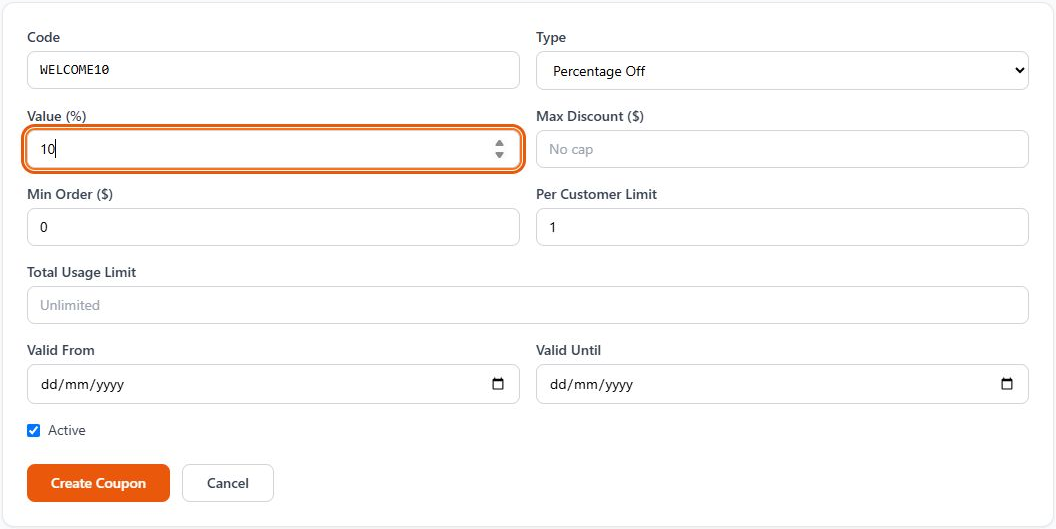
Open Coupons → + New Coupon. Set its code, Percentage Off or fixed amount, value, minimum order, usage limits and validity dates. Create the coupon, then test it on the correct store before promoting it.
- 4
Copy and test the selected store’s link
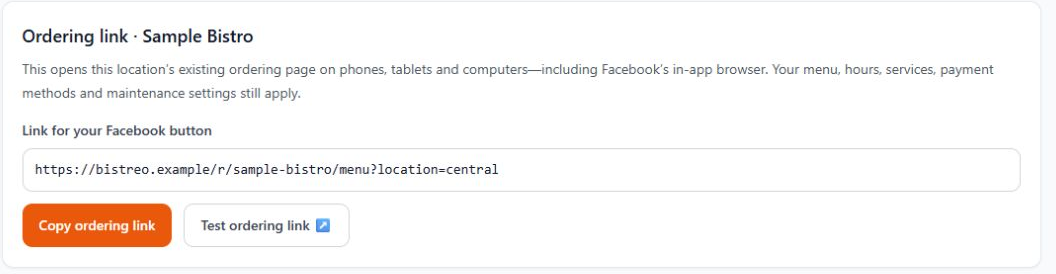
Select the store in Store Management, then open Connections & feedback → Facebook ordering. Use Copy ordering link, then Test ordering link to check the selected location. Add the URL manually to an available Facebook Page action button, Website field or pinned post. Save and test the button on your Facebook Page.
Make it yours
Your next order can come directly to you.
Start with one Free store. Add your menu, verify your settings and test the complete flow before opening for orders.
Get started with Bistreo